Cronomicon
The self-hosted Script Orchestrator — schedule and run Bash, Ansible, Terraform, PowerShell, Perl and Python jobs across your fleet from one auditable web console.
This course is for operators moving from Fortra Automate Schedule to Cronomicon. It teaches the model — the handful of ideas that are genuinely different — rather than touring every screen. The manuals already document every field; this gets you to the point where those manuals make sense.
Work through it in order — later modules assume earlier ones. Nothing here is timed or graded, and nothing is recorded anywhere but your own browser. The tick boxes below are for your benefit only.
Administrators: finish this course first, then take the administrator course. It covers scopes, agencies, runners, access grants and secrets, and it assumes everything below.
Your progress
Saved in this browser only. Not sent anywhere, not visible to anyone else.
M0 · What changed — Automate Schedule to Cronomicon
The good news first: you already know most of this. Automate Schedule and Cronomicon do the same job — run scripts on servers, on a schedule, in order, and tell you what happened. A job is still a job. Your scripts are still your scripts. Most of what you know transfers directly.
Six things are genuinely different. Everything else in this course is detail hanging off them.
The six differences
1. Job definitions live in Git, not in the scheduler
In Automate Schedule you edit a job on the server and the change is live. In Cronomicon, most job definitions live in a Git repository — version-controlled, reviewed, and synced into Cronomicon.
This is the single biggest change, and it explains most of the times you will find a field you cannot edit. A job that came from Git is read-only in the app, on purpose: the repository is the source of truth, and letting the app overwrite it would mean two answers to "what does this job do".
Cronomicon can also hold jobs of its own, authored in the app. The two kinds live in separate
namespaces and never collide — that is the "source" column you will see everywhere, reading
either git or cronomicon.
2. One job becomes four reusable pieces
An Automate Schedule job carries everything on one record: the command, the agent, the schedule, the parameters. Cronomicon splits those into four objects that snap together:
- Script — what runs (Bash, PowerShell, Python, Perl, Ansible, Terraform)
- Scope — where it is allowed to run
- Schedule — when it runs
- Env Vars — what it needs to know
A Job is those four bound together. The payoff is reuse: one "nightly at 02:00" schedule serves forty jobs, and fixing it once fixes all forty. The cost is that creating a job feels like assembly rather than filling in a form.
3. There is no agent on most machines
Cronomicon connects over SSH from the server. No agent to install on each target, no per-machine licence, and no "Unlicensed Agents" count to watch.
Runner agents do exist, but for different reasons than you are used to: reaching networks the server cannot reach, and watching directories for files. If your work does not involve either, you may never see one.
4. Calendars can only block a run — never cause one
Read this one twice. It is the same word doing a narrower job, which makes it the easiest thing on this page to get wrong.
An Automate Schedule calendar can define when a job runs. An Cronomicon working calendar can only suppress a run that a schedule was already going to make. It is a veto, applied just before a scheduled fire. It can never trigger anything.
So when you bring a job across: the days it runs on move into the schedule. The days it must not run on — holidays, freeze windows, month-end — move into the calendar.
One consequence in your favour: an Cronomicon calendar cannot quietly expire and leave a job never running.
5. How wide a run reaches is something you can see — and set
In Automate Schedule, where a job runs is settled by its agent or agent environment. In Cronomicon a run's reach is decided by three things together, and the Run dialog shows you all of them before you commit.
This is module M5, and it is the one worth slowing down for. It is where a new operator can do real damage.
6. Every run is reproducible, by trace ID
Cronomicon snapshots what actually ran: a hash of the script's content at execution time, the effective environment, the scope, the target hosts, and which executor carried it out. Each run carries a trace ID that ties the log, the audit record and the activity entry together.
Practically: when someone asks "what did this job do on the 3rd", there is an exact answer, and "the script changed since then" is visible rather than guessed at.
Your vocabulary, translated
Expand any row for what actually changes for you. Rows marked new have no Automate Schedule equivalent — those are the ones to read properly. careful marks a false friend: same word, different behaviour. not yet is something Cronomicon does not do today.
Job→Job
Same idea, same name. The difference is where the definition lives — usually Git — and that the schedule, scope and variables it uses are separate reusable objects rather than fields on the job itself.
The job's command or script→Script
Now a version-controlled file rather than a field you type into. Cronomicon reads your scripts from Git, detects which variables they reference, and lints them. You will find your scripts under the Scripts catalog, read-only — they are changed by committing, not by editing in the app.
Agent→SSH executor, or a Runnersimpler
By default there is no agent: Cronomicon connects over SSH. Runner agents exist for networks the server cannot reach directly, and for watching directories for arriving files.
No licensing, so no unlicensed-agent count and no licence expiry to track.
Agent Environment→Scope
A named set of hosts a job is allowed to run on. Closest thing to an agent environment, and it does more: a scope also declares which run types it supports and can carry an Ansible inventory.
Crucially it is a boundary, not just a grouping — a run cannot reach a host that is not in its scope. M5 covers this.
—Agencynew
A network-isolation zone. Jobs in one agency only ever dispatch to runners in that same agency — the separation is hard, not a preference.
Mostly an administrator's concern. As an operator you will see agency names on jobs and runners and can otherwise ignore them.
Job Suite→Workflow
Ordered jobs run as a unit, with branching, parallel arms, and the ability to pass values from one step to the next. A workflow can also contain another workflow as a step.
Job dependency / prerequisite→Reaction
"When job A finishes, run job B." Reactions carry the finishing job's disposition, so you can react differently to a success, a failure, or a run someone killed.
They are depth-limited on purpose: a chain of reactions cannot run away, and every decision to fire — including "wanted to fire, could not" — is recorded.
File dependency→File-arrival trigger
A runner watches a path and the server decides what an arrival means. A file must be stable — unchanged in size for a set period — before it counts, so a job cannot start on a half-copied file.
Every arrival leaves a row in the job's File Arrivals panel, including arrivals that did not start a run and why. That panel is the answer to "the file landed, so why did nothing happen?"
This is one of the two features that needs a runner — specifically, one where the files land.
Job Queue→Concurrency policy
Set per job, with three answers. Allow lets runs overlap. Forbid drops the new run and records it as skipped. Queue parks it and runs it when the previous one clears.
A queued run does not wait forever — if the way stays blocked for 24 hours it is recorded as missed rather than firing at a time that no longer makes sense.
Calendar→Working calendarcareful
Veto only. An Cronomicon calendar suppresses runs; it cannot schedule them. See difference 4 above — this is the most common thing to get wrong when moving a job across.
Job Monitor (runs too long)→SLA deadlinecareful
Two separate settings that are easy to confuse, and they do opposite things:
- Overdue tells a person. The run keeps going.
- Timeout kills the run.
A backup still running at 6am may be perfectly healthy and merely slow. The right response to that is usually a human looking at it, not a kill — so reach for overdue first.
Missed Jobs→Missed-run detection
Cronomicon watches for a schedule that should have fired and did not, and raises it rather than leaving it to be noticed. Note that a run suppressed by a working calendar is skipped, not missed — that one was deliberate.
Today's Failed / Skipped Jobs→Dashboard verdict strip
The first thing on the Dashboard is a one-line answer: everything is fine, or these jobs need you. It links straight to the failures.
You can dismiss it — and dismissing is tied to what you saw. If a new failure appears, the strip comes back. It cannot swallow something you have not looked at.
History / History Purge→History + log retention
Every run, filterable, with the full log attached. Logs stream live while a run is going, so you can watch a long job rather than waiting for it to finish. Retention reaps old log files on a schedule an administrator sets.
Notification lists→Notifications
Email as before, plus Slack and PagerDuty. Configured by an administrator; you will see the results rather than the wiring.
Users / Admin→Roles and access grants
Access is granted as a package: a group of people, a role, and the scopes that role applies to — together, in one grant. Being allowed to run jobs somewhere is not the same as being allowed to run them here, and Cronomicon keeps those apart deliberately.
If a button is greyed out or a job is not in your list, this is usually why. The administrator course covers it properly.
Standby Server→—not yet
No standby server today. Recovery is by restore from backup rather than failover to a standby. Not an operator concern day to day, but worth knowing it works differently — it is on the roadmap.
Reports / Analysis Tools→Dashboard, History, run analyticspartial
You get the Dashboard's Score timeline, filterable History, and run analytics. There is no report builder, and the CSV export covers audit records rather than run history. Also on the roadmap.
Enter License / Unlicensed Agents→—gone
There is no licensing model. Nothing to enter, nothing to expire, no cap on how many machines you reach.
M1 · One job becomes four objects
In Automate Schedule, a job record holds everything: the command, the agent, the schedule, the parameters. Cronomicon takes those apart into four objects that you combine.
Script
What runs. A file in Git — Bash, PowerShell, Python, Perl, Ansible, Terraform.
Scope
Where it may run. A named set of hosts, and the outer limit of any run.
Schedule
When it runs. A reusable cron definition, shared across jobs.
Env Vars
What it needs to know. Values, and references to secrets it must not carry itself.
A Job binds those four together. Ordered jobs make a Workflow, and a workflow can contain another workflow as a step.
The reason for the split is reuse. One "weeknights at 02:00" schedule can serve forty jobs — change it
once and all forty move. One scope named Production is maintained in one place rather than
re-typed onto every job that targets it. The cost is that building a job feels like assembly, and that
you have to know which object owns which fact.
Which object owns it?
Decide before you open each one.
The command line that actually executes
Script
The script is the executable content, held in Git. Cronomicon reads it, hashes it at run time so the run is reproducible, and detects which variables it references.
The list of servers this job is allowed to touch
Scope
And "allowed" is exact — the scope is a ceiling, not a default. M5 covers what that means when you press Run.
02:00 every weeknight
Schedule
Reusable and shared. Schedules also carry activation windows — a start and end date outside which the schedule simply does not fire — and can run at an interval or exactly once.
The database password the script needs
Env Vars — as a secret reference, not a value
This one has a sharp edge. A job binds the name of a secret, never the secret itself. The value is fetched at dispatch, injected into that run only, and fed to the log redactor so it cannot appear in output.
The practical rule: if you ever find yourself typing a password into a job definition, stop — there is a reference for it.
The order in which three jobs must run
Workflow
Not a property of any one job. A workflow holds the order, the branching, and the values passed from one step to the next — the equivalent of an Automate Schedule job suite.
Whether this job may run while a previous run is still going
The job — its concurrency policy
Allow, Forbid or Queue, set on the job itself rather than on any of the four pieces. It is the equivalent of an Automate Schedule job queue. M6 covers what each answer does.
M2 · Where definitions live — Git or Cronomicon
Every definition in Cronomicon — job, workflow, script, schedule — carries a source, and it is one of two values.
git
Defined in a Git repository and synced in. The repository is the truth; Cronomicon holds a copy it keeps up to date.
cronomicon
Authored in the app, stored in Cronomicon's own database. No repository involved.
The two are separate namespaces. A git job called nightly-backup and an Cronomicon job called
nightly-backup are different jobs and never collide. You will see the source on every row,
and it is the answer to most "why can't I edit this?" moments.
Scripts are a special case worth knowing up front: scripts are Git-only. There is no in-app script editor at all, by design. Automation content belongs in version control where it can be reviewed, diffed and rolled back.
Can you change it in the app?
Assume the job in question came from Git. For each one, decide before revealing.
Add a tag to the job
Yes — any signed-in user
Tags are yours, not Git's. They live only in Cronomicon, survive every sync, and need no special permission. The same is true of tags on scripts, schedules and workflows.
Change what the script does
No — commit to Git
The script is the definition. Change it in the repository and let it sync. If the app let you overwrite it, there would be two answers to "what does this job do", and the repository's would be wrong.
Add a note, a contact, or mark the job critical
Yes — any signed-in user
Annotations are a sidecar, like tags: Cronomicon-only, sync-preserved. This is the right place for "ring the DBA before re-running this" — knowledge that belongs to your team's operation of the job rather than to its definition.
Pause the job so it stops firing
Yes — that is state, not definition
Pausing does not change what the job is, so Git has no opinion about it. Same for resuming, and for stopping a run that is currently going.
Point the job at a different scope
No — commit to Git
The scope binding is part of the definition. Changing where a job may run is exactly the kind of change that should be reviewed and recorded, not typed into a form at 2am.
Override an environment variable for one run only
Yes — and it changes nothing permanently
A per-run override applies to that run and no other. It is recorded against the run so anyone reading the history later can see it was not a normal execution. The definition is untouched.
This is the release valve for "just this once", and it is the right tool for that job.
M3 · Finding your way around
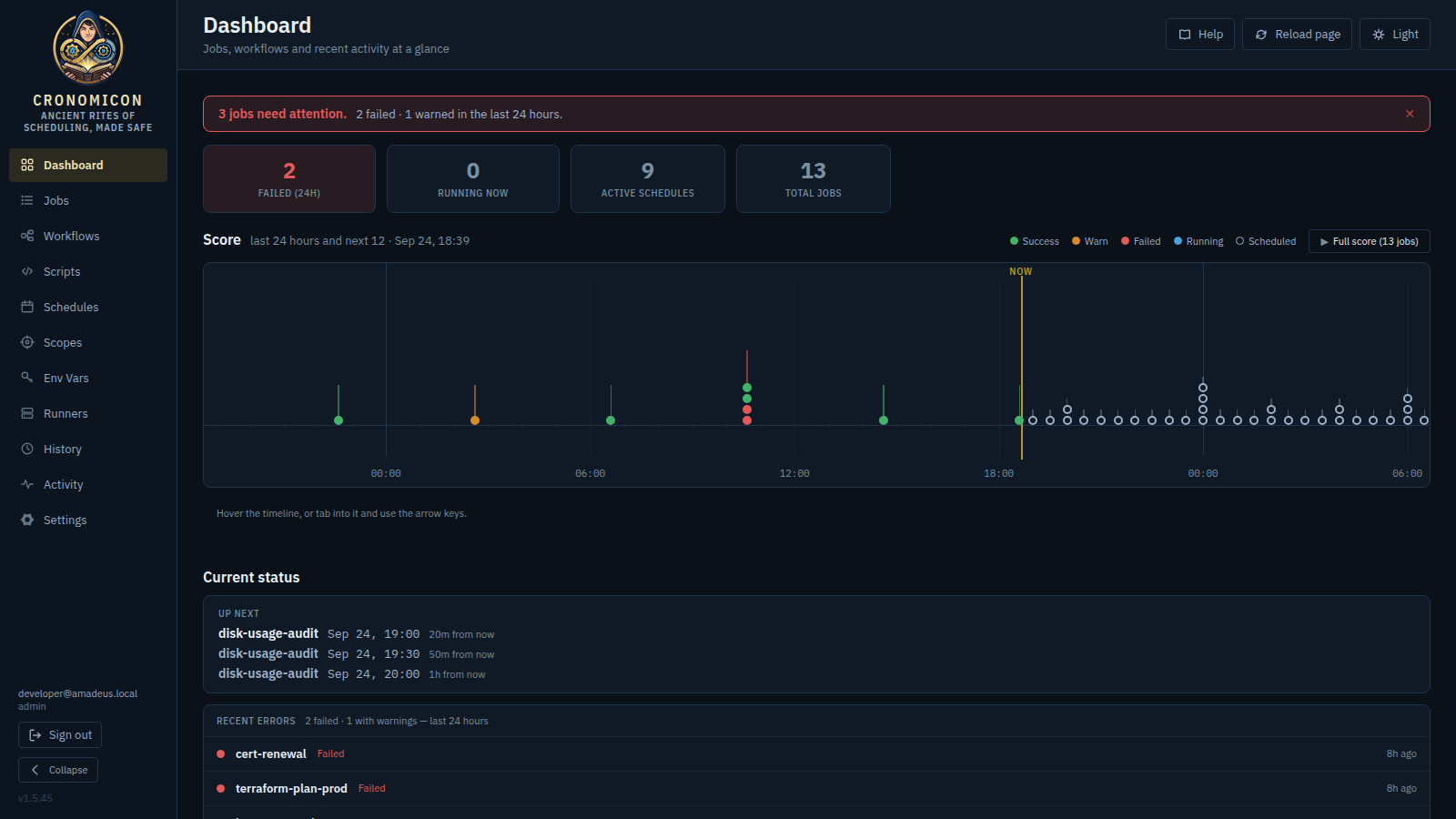
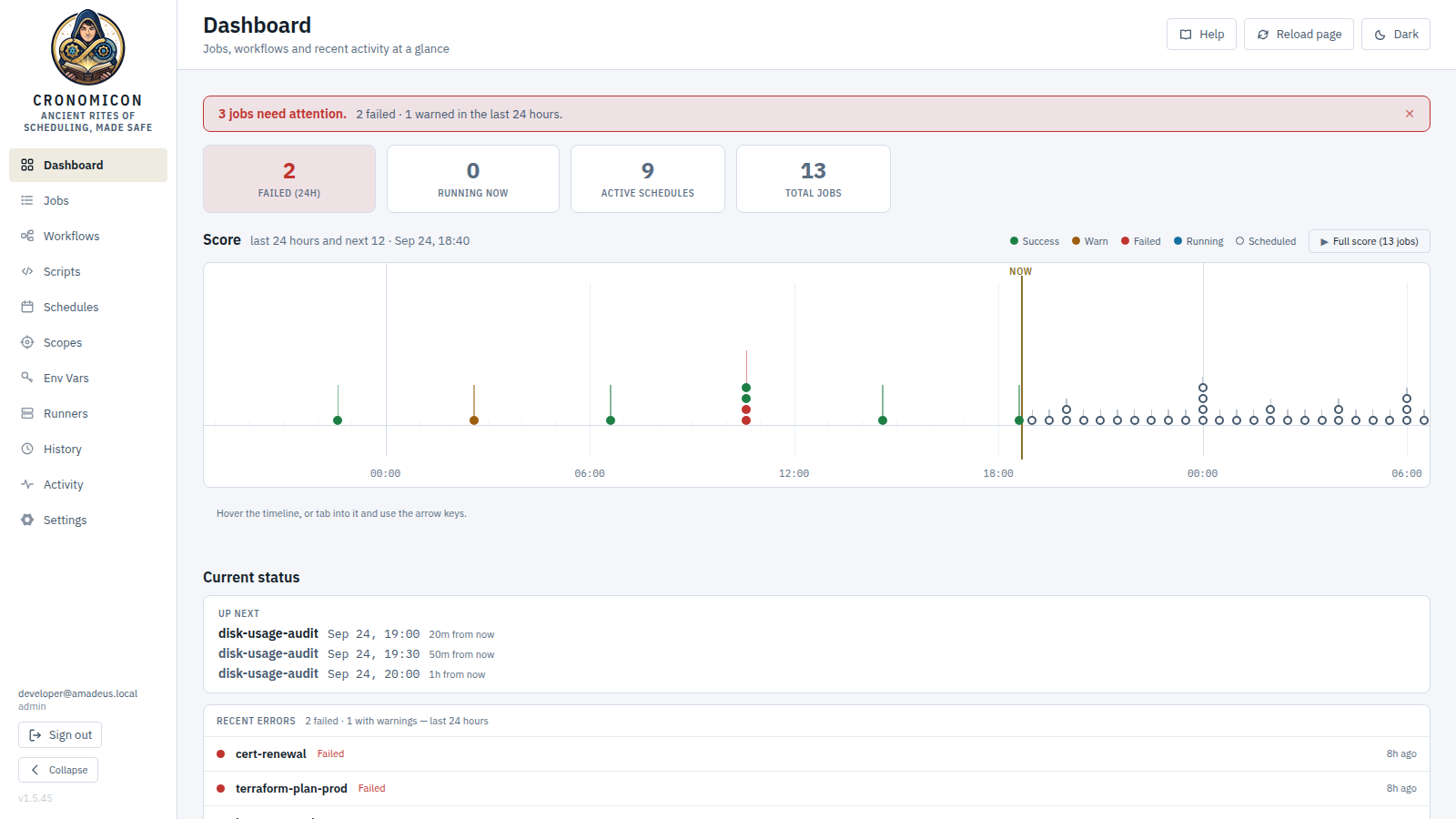
The Dashboard answers one question before you have to ask it: does anything need me right now? Everything else on the page is evidence for that answer.
 1
2
3
4
1
2
3
4
- The verdict strip. The first thing on the page and usually the only thing you need. Either everything is fine — as here — or it names how many jobs need you and links straight to them. You can dismiss it, and the dismissal is tied to what you actually saw, so a new failure brings it back. Closest thing to your Action Required list, minus the twenty-one messages nobody cleared.
- Stat tiles. Failed in the last 24 hours, running now, active schedules, total jobs. All four are links: Running now opens History filtered to in-flight runs, Total jobs opens the catalog.
- The Score. A timeline running 24 hours back and 12 hours forward, one row per job, with a playhead at "now" — the vertical line. Past runs sit to its left carrying their outcome colour, future scheduled fires to its right. Runs at nearly the same moment draw as a single chord rather than piling up. Hover any mark, or tab into the timeline and use the arrow keys, to read it.
- Current status. Up next names the next three scheduled fires, soonest first — and it accounts for working calendars, so a fire that will be vetoed is not listed as though it were going to happen.
- Recent errors — not visible above, and that is the point. It appears beneath Up next only when something has actually failed, listing each failure with a link into History filtered to that job. This Dashboard has nothing to report, so the section is absent rather than sitting there empty. That is the pattern across the app: a section with nothing to say gets out of the way.
The rest of the app
The sidebar is the catalog list: Jobs, Workflows, Scripts, Schedules, Scopes, Env Vars, Runners, History, Activity, Settings. Three habits will save you time in all of them:
Click a row to expand it, rather than navigating away
Catalog rows expand in place into a detail panel — runs, bindings, notes, actions — so you keep your filters and your place in the list. Each panel has its own Refresh, which reloads that panel alone.
Use the status tabs and the Tag filter before you use search
Every catalog has tabs across the top — All, Running, Success, Failed, Paused — with counts. A tab showing zero is dimmed but still clickable. Tags are yours to apply and filter by, and are usually a faster route to "my team's jobs" than typing.
Make the table show what you care about, once
The Columns menu lets you choose which columns appear and in what order, per table, and it remembers. If you never look at a column, remove it — a narrower table is a faster read, and the setting follows you back.
M4 · Running a job
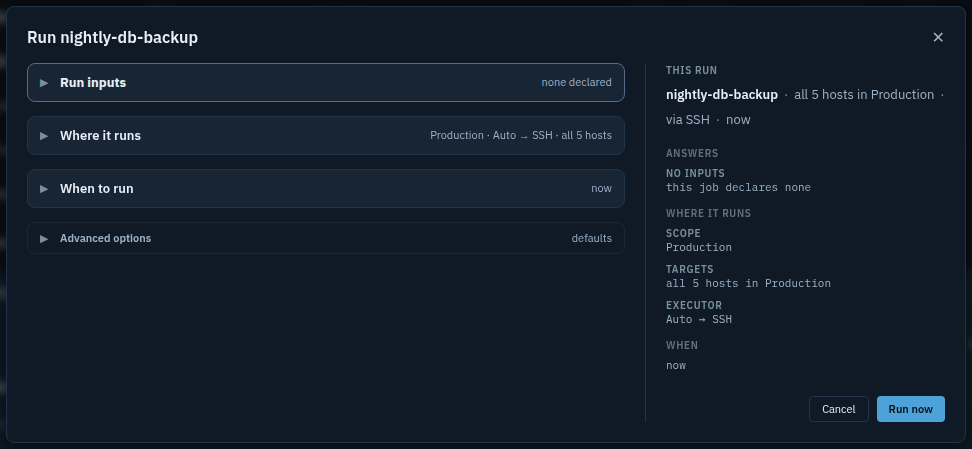
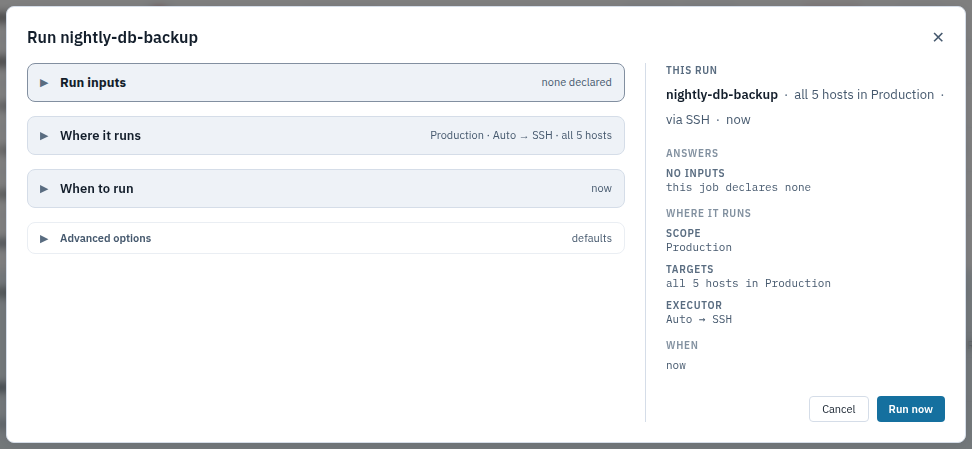
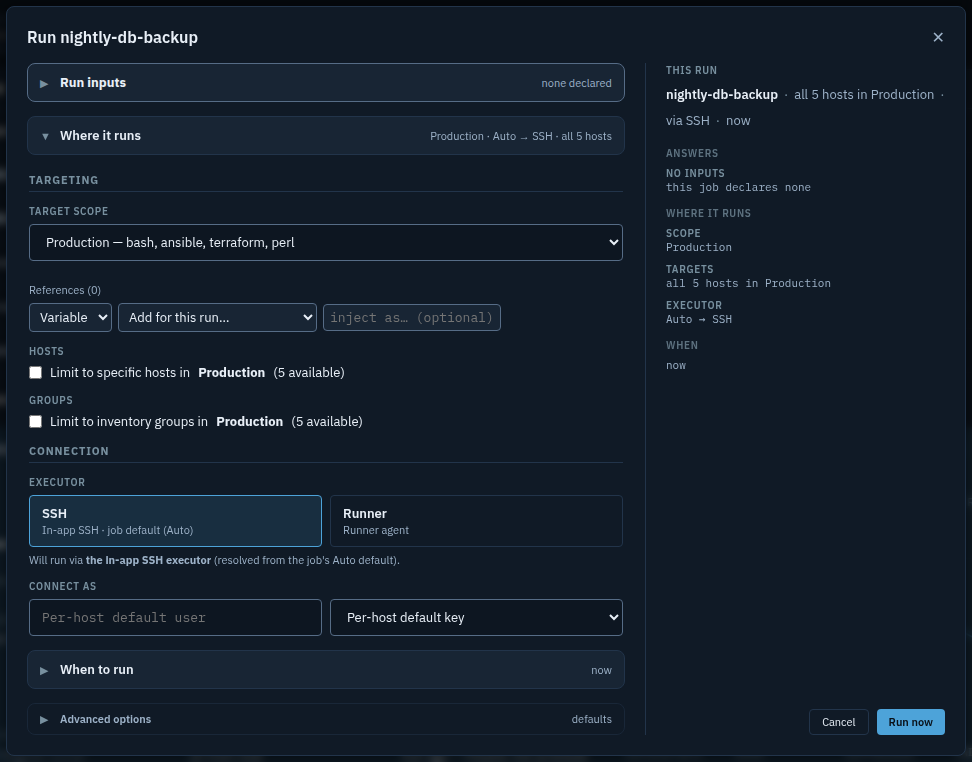
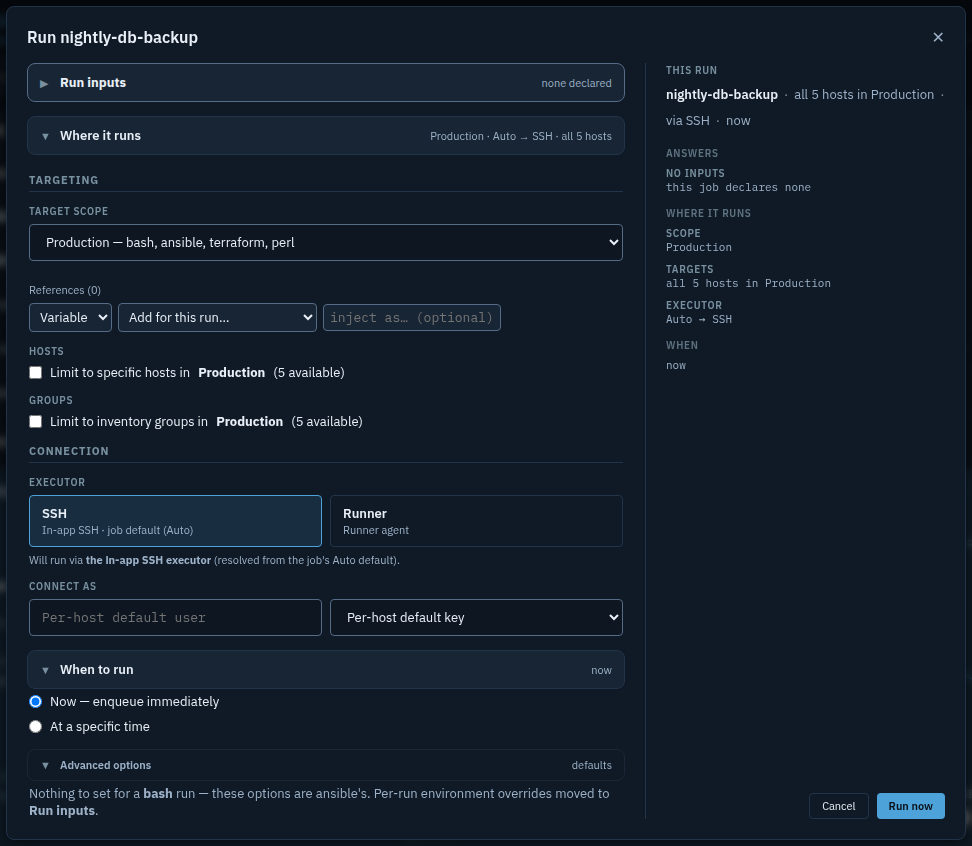
The Run dialog is where an intention becomes a run, so it is built to be read rather than clicked through. It opens with everything collapsed and a plain-language summary on each section — you only open what you intend to change.
Step through it below. The panel on the right of the dialog is the important part.
Everything is answered before you touch anything
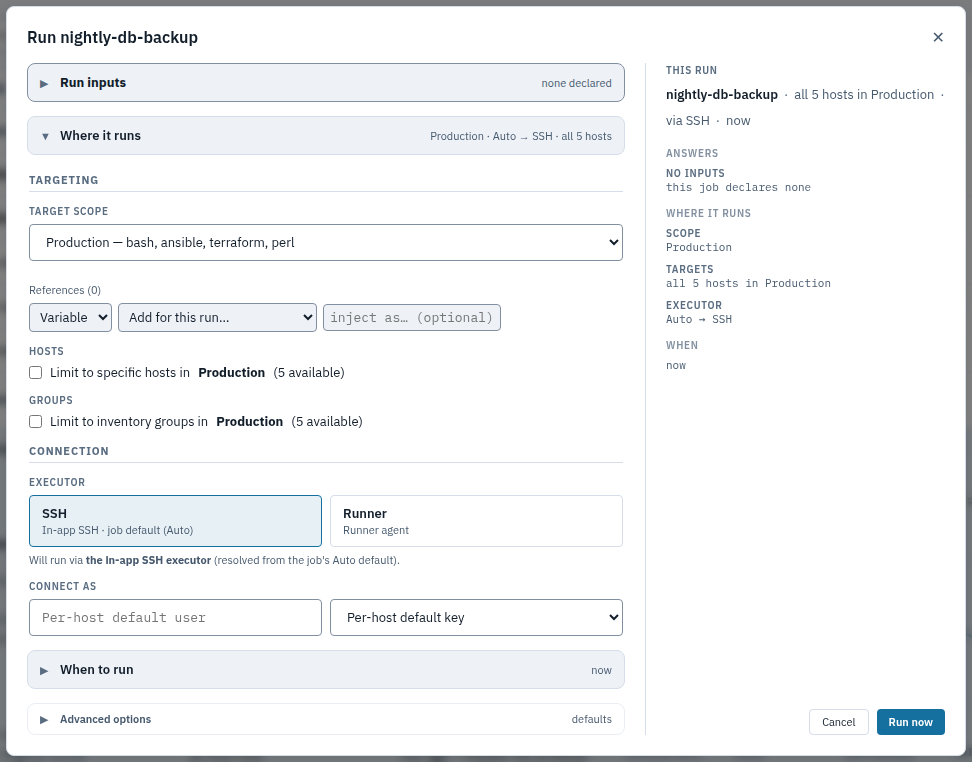
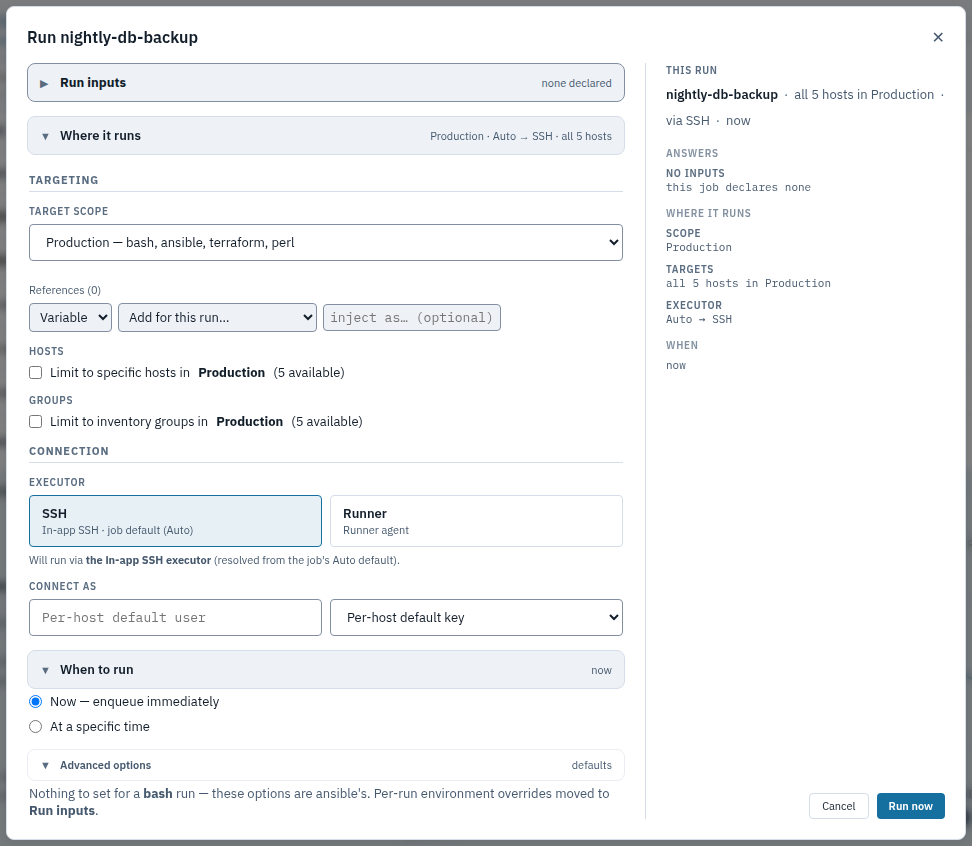
Four sections, all closed, each stating its own answer on the right: none declared, Production · Auto → SSH · all 5 hosts, now, defaults. You can read the entire run without opening a single one.
The This run panel repeats it as a sentence and then in full. It lists every setting the run will use — not only the ones you changed — because the question it answers is "what is about to happen", and a list of your edits does not answer that.
Targeting and connection, in one place
The scope, then two ways to narrow within it — specific hosts, or inventory groups — then how Cronomicon connects: which executor, and which identity to connect as.
Both narrowing controls name the scope and count what is available (5 available), so you are choosing from a known set rather than typing hostnames and hoping. Leave them alone and the run uses the whole scope, which is M5's first lesson.
Now, or later
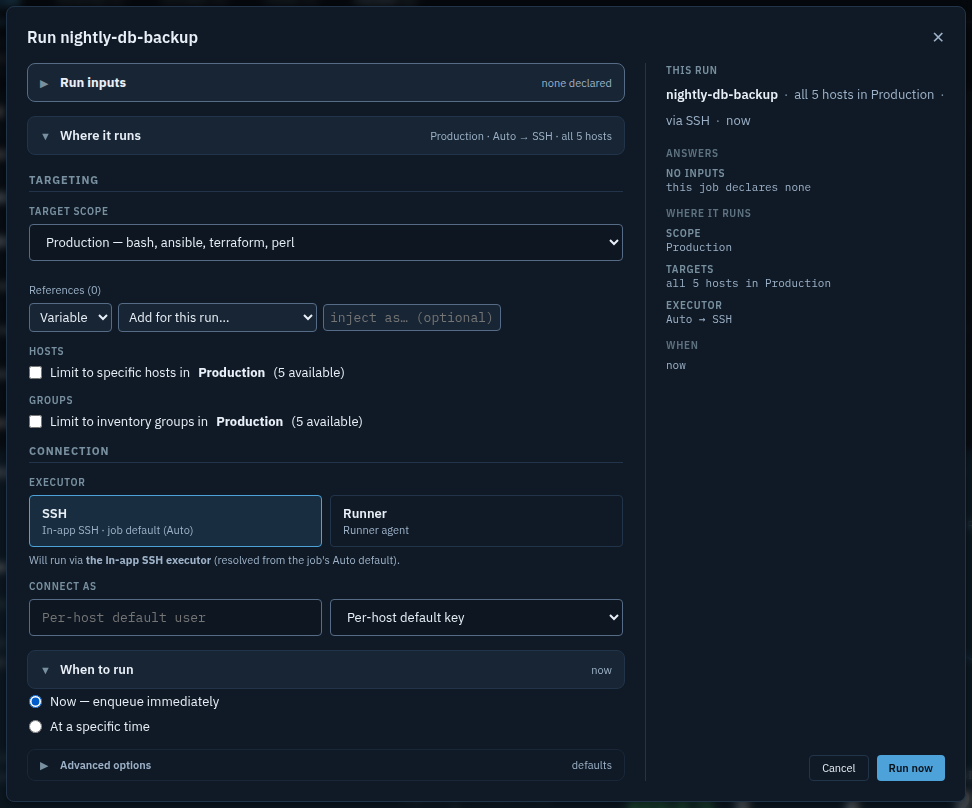
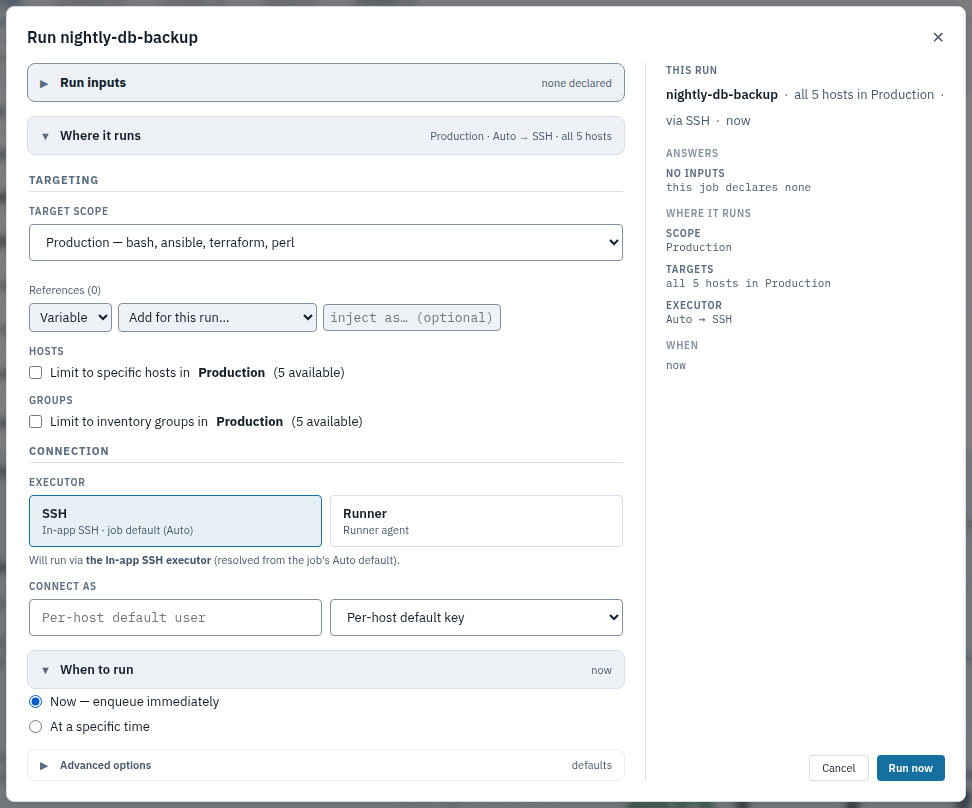
An ad-hoc run does not have to be immediate. At a specific time parks the run and releases it when the time arrives.
Worth knowing: a deferred run is not a schedule. It is one run, waiting. If the conditions for releasing it have not cleared within about a day it is recorded as missed rather than firing at a time that no longer makes sense.
Advanced options tell you when they do not apply
For an Ansible run this is where check mode, diff, verbosity, tags and become live. For this bash job it says so plainly — nothing to set for a bash run — and points at where the thing you were probably looking for actually is.
A section that explains its own emptiness is worth more than one that hides.
Two things to carry away
Anything you change shows up as a deviation
Change a setting and the This run panel calls it out as a deviation from the job's normal behaviour. Before the run starts, a confirmation lists those deviations back to you — only the deviations, because that is the part worth a second look.
The deviation list is also recorded against the run. Someone reading History next month can see this run was not a normal one, and how.
Some jobs ask you questions, and some insist
A job can declare run inputs — questions answered at run time, inherited from the script that declares them. This one declares none, so the section reads none declared.
When a job does declare them, it can be set to warn about missing required answers or to block the run outright. If a run refuses to start over a missing input, that is the job's author telling you the answer genuinely matters.
M5 · Targeting and blast radius
This module is about one question: when I press Run, how many machines does this touch? Get it wrong in the cautious direction and a job does not do its work. Get it wrong the other way and you have run something on two hundred servers that you meant to run on one.
Three things decide it, and they combine.
The three controls
The scope — the outer boundary, and it is a hard one
Every job is bound to a scope, and the scope's host list is the maximum reach of any run of that job. Not a default — a ceiling.
You cannot target a host outside the bound scope. Try it and the run is refused before anything executes, naming the host that is not a member. There is no override for this in the Run dialog; widening reach means changing the scope, which is an administrator's job and leaves an audit trail.
The pinned target host — set on the job, applies to every way it runs
A job can pin a single host. When it does, every run of that job goes to that host only — whether you started it, a schedule fired it, a workflow stepped into it, or a reaction triggered it.
That "every way" matters. It is the whole point of the pin: a job that is safe only on one host must not become unsafe because something other than a person started it.
Per-run selection — hosts or groups you choose in the Run dialog
For a single run you can narrow to specific hosts, or to inventory groups. This narrows only — it can never reach past the scope.
For Ansible jobs this becomes the --limit the playbook runs under, computed the
same way for both executors so an Ansible run and an SSH run of the same selection reach the
same machines.
One deliberate behaviour worth knowing: if your selection resolves to nothing, the run targets nothing. It does not fall back to the whole scope. A selection that matched nothing is far more likely to be a mistake than an instruction to run everywhere.
Before you commit, the Run dialog's This run panel states exactly what will happen — every answer and setting the run will use, not just the ones you changed. Read it. It is the last thing standing between an intention and two hundred servers.
Check yourself
Three situations. Commit to an answer before you open it — the wrong ones are explained too, and that is where most of the teaching is.
Scenario 1
A job named disk-report is bound to the scope Production,
which contains 12 hosts. The job has no pinned target host. You open the Run dialog, change nothing,
and run it.
How many hosts does it run on?
One — the first host in the scope
No. Cronomicon never silently picks one host for you. If it did, a job's reach would depend on inventory ordering, which nobody can see and anybody can change.
All 12
Correct. With no pin and no per-run selection, the scope is the target set. The scope is a ceiling, and with nothing narrowing it, you are running at the ceiling.
This is the default that surprises people most, which is why it is scenario 1.
None — you have to select hosts before it will run
No. Selecting hosts is optional; an unnarrowed run is a legitimate and common thing to want. Empty targets happen when a selection matches nothing, which is different from making no selection.
Takeaway: no selection means the whole scope. If you want one host, say so — every run, every time.
Scenario 2
A job named db-reindex is bound to a scope of 8 hosts and has
target host pinned to db-01. Nobody is at a keyboard: its schedule
fires it at 02:00.
Where does the scheduled run execute?
Only db-01
Correct. The pin applies to every path a run can start from — scheduled fires, workflow steps, retries, reactions, and Ansible runs alike.
This is worth trusting, because the alternative is a job that is safe when you run it and dangerous at 02:00.
All 8 — a pin only applies when a person runs the job
No — and this is the single most valuable wrong answer on the page, because it is the intuition many people bring from their old scheduler: a pin honoured for manual runs and dropped by scheduled fires and workflow steps, which means a job pinned to one database server fans out across all eight overnight.
Cronomicon does not work that way: the pin rides every path. If you remember a tool that behaved like that, this is the correction.
Nowhere — a pinned job cannot be scheduled
No. Pinning and scheduling are independent. Pinning answers "where", the schedule answers "when", and a job routinely needs both.
Takeaway: a pin is a property of the job, not of the way you happened to start it.
Scenario 3
A job is bound to the scope Staging. In the Run dialog you type
the host prod-web-04, which exists in Cronomicon but belongs to the
Production scope.
What happens?
It runs — the host exists, so Cronomicon connects to it
No, and if this were true the scope would be decoration. A boundary that yields whenever you name something outside it is not a boundary.
It runs on Staging's hosts instead, ignoring what you typed
No — and silently substituting a different target set would be the worst option available. You asked for one machine and would have got several, with nothing on screen to say so. Cronomicon refuses rather than reinterprets.
The run is refused, naming the host that is not a member
Correct. Membership is checked before anything executes, and the refusal names the specific host so you can see whether you mistyped or genuinely need a different job.
The fix is never to force it through. Either run the job whose scope contains that host, or ask an administrator to change the scope — which is a deliberate, audited act.
Takeaway: the scope is a wall, not a suggestion. When Cronomicon refuses, it is doing its job.
Three habits worth keeping
- Read the "This run" panel before committing. It states the full picture, not just what you changed.
- Say the reach out loud. "This runs on all twelve Production hosts." If that sentence is uncomfortable, narrow it.
- Treat a refusal as information. Cronomicon refused because something did not add up. Find out what before you route around it.
M6 · How runs start
In Automate Schedule almost everything starts on a schedule or a dependency. Cronomicon has six ways a run can begin. Knowing which one started a given run is usually the first step in understanding it — and History records it on every row.
1. The clock — a schedule fires
The common case. Schedules are reusable, support activation windows (a start and end date outside which nothing fires), and can run on an interval or exactly once instead of on a cron expression.
This is the only path a working calendar can veto.
2. A person — someone presses Run
What M4 walked through. Can be immediate or deferred to a specific time. Calendars do not veto this — if you have decided to run something on a holiday, Cronomicon assumes you meant it.
3. Another job finishing — a reaction
Your job dependencies. A reaction can distinguish how the first run ended — succeeded, failed, or was killed by someone — and act differently.
Reaction chains are depth-limited so they cannot run away, and every decision to fire is logged, including the ones that decided to fire but could not. If a reaction did not happen, there is a record saying why.
4. Being a step in a workflow
The job runs because the workflow reached it. Its run is linked to the workflow run, so you can read the whole sequence rather than five unrelated rows.
5. An external system — an API trigger
Another system can start a job by calling Cronomicon with a service-account token. A job must explicitly opt in to being triggered this way — being reachable by the API is a decision its author makes, not a default.
6. A file arriving
Your file dependencies. A runner watches a path; the file must be stable — unchanged in size for a set period — before it counts, so nothing starts on a half-copied file.
Every arrival is recorded in the job's File Arrivals panel, including arrivals that did not start a run and the reason. When someone says "the file landed and nothing happened", that panel is the answer rather than the beginning of an investigation.
This is one of the two things that needs a runner — specifically one on the machine where the files land.
What a calendar does, one more time
A working calendar is a veto applied just before a scheduled fire. It can stop a run. It can never cause one, and it only ever sees path 1 above.
When you move a job across from Automate Schedule, its calendar splits in two: the days it should run go into the schedule's cron expression, and the days it must not run go into a working calendar.
Check yourself
Scenario 4
A job runs at 02:00 every day. A working calendar attached to it marks 25 December as a non-working day. It is now 03:00 on 25 December.
What do you see in History for 02:00 today?
Nothing at all — no fire, so no record
No. A silent non-event is indistinguishable from a broken scheduler, and you would have no way to tell "the calendar worked" from "the calendar is misconfigured".
A run with the result Skipped, whose reason names the calendar
Correct. Suppression is a decision the system made on your behalf, so it is written down like any other decision — and the reason names the calendar that made it.
A run with the result Missed
Close, and worth being precise about: there is no Missed result. A fire that a schedule expected and never got is also recorded as Skipped — with the reason "Missed: the schedule expected a fire and no run appeared".
So both land in the same place, and the reason line is what tells them apart: a named calendar means the system did what you asked, while a missed reason means something is wrong. This is the habit worth forming — on a skipped run, read the reason, never just the result.
Nothing today, but it will run twice tomorrow to catch up
No. A vetoed fire is not deferred, it is cancelled. Catch-up behaviour would be actively dangerous here — the whole point of the calendar was that today was the wrong day to run.
Takeaway: Skipped covers everything that was going to run and did not. The reason says whether that was deliberate or a problem — which is the difference between an alert worth answering and noise, and it is one line further down the panel.
Scenario 5
A job is set to Queue. It fires hourly. The 02:00 run is slow and is still going when 03:00 arrives.
What happens to the 03:00 fire?
It starts anyway, alongside the 02:00 run
No — that is Allow. It is the right answer for jobs that are safe to overlap, and the wrong one for anything that writes to a shared resource.
It is dropped and recorded as skipped
No — that is Forbid. Honest, and it is what people usually reach for first, but it is rarely what they actually wanted: the work still needed doing.
It is parked, and runs as soon as the 02:00 run finishes
Correct. That is the point of Queue: neither overlapping nor losing the fire.
With one bound worth knowing — a run that stays blocked for about a day is recorded as missed rather than firing eventually. A backup queued behind a wedged job should not start twenty hours late; by then, not running is the safer outcome and someone should be told.
Takeaway: Allow overlaps, Forbid drops, Queue waits. Most jobs that used a job queue in Automate Schedule want Queue.
M7 · Reading results
History is the record of every run Cronomicon has ever made — what ran, when, where, who or what started it, how it ended, and the log it produced. It is where you spend most of your time once something has gone wrong, so it is worth learning properly rather than by hunting.

 1
2
3
4
1
2
3
4
- Six tabs, not one page. Executions is individual job runs and is where you will live. Workflow Runs is the same for workflows, so a five-step workflow reads as one row rather than five unrelated ones. Analytics is run statistics over time. Change Log is who changed what — a different question from what ran, and worth knowing exists before you need it. Schedule Pushes and Git Sync cover definitions arriving from Git.
- Search takes a job name or a trace ID. If someone hands you a trace ID from an alert or a ticket, paste it here and you are looking at exactly that run.
- Four filters. Type (bash, ansible, python…), Result, Trigger — which of M6's six ways started the run — and Stopped, for runs someone intervened in. Filtering by Trigger is the fastest way to answer "did a person do this, or did the schedule?"
- Every run has a trace ID, shown truncated with a copy button. It is the one identifier that ties the run's row, its log, its audit records and its activity entry together. When you escalate, send the trace ID — it saves the next person every question they were about to ask.
The drill-in
Click any row and it expands in place into the full record.


Most of it is self-explanatory. Four fields repay a closer look:
Triggered by — who or what caused this
Reads as an actor and a mechanism: Cronomicon (scheduled), or a person's address for a manual run, or a service account for an API trigger. This is the first thing to check when a run happened that you did not expect.
Set off — what this run will trigger in turn
The reactions watching this run. If a failure here is going to cascade into three more jobs, this is where you find that out — ideally before you go and re-run something.
Queued at versus Started at
Two different times, and a gap between them is information. A run that queued at 02:00 and started at 02:47 was waiting — for a concurrency gate, for a runner, for the queue ahead of it. If a job "runs late", this pair tells you whether it started late or simply took a long time.
Exit code — and why the result may not match your instinct
The script's own exit code. Worth pairing with the result: a job can end as Warn and still be considered complete, and — this is the one people do not guess — a warning counts as a success for anything reacting to this run.
If a job habitually exits with warnings and something downstream fires "at random", that is why.
Watching a run that is still going
The log tails live, and follows unless you scroll away
Open a run that is still going and the log updates itself every couple of seconds. You do not have to wait for the job to finish to see what it is doing — which for a long Ansible play is the difference between watching and guessing.
It sticks to the bottom while you are parked there, and stops following the moment you scroll up to read something, then resumes when you scroll back down. When the run reaches its end, tailing switches off by itself.
Logs are redacted, and what that does and does not cover
Secrets are masked — anything injected from the secret store or Vault, and multi-line values such as SSH keys. That masking happens as the log is written, not when you read it, so there is no unredacted copy sitting on disk.
Ordinary environment variables and run inputs are not masked; they are visible, on purpose, because they are usually what you need to see when diagnosing. The rule to carry: if a value should never appear in a log, it belongs in the secret store, not in a variable.
There is a copy button on every log view.
M8 · When something goes wrong
A job failed. Before touching anything, four questions in order — each one is cheap, and answering them out of order is how people re-run a job that was never the problem.
- What actually failed? The Dashboard's verdict strip names it and links straight there. If several things failed at once, that is itself a clue — one job failing is a job problem, six failing together is usually a host, a credential, or a network.
- When did it start failing? The job's Score row shows the last 24 hours at a glance. A job that failed once at 02:00 and succeeded at 03:00 is a different problem from one that has failed every run since Tuesday.
- What does the log say? Open the run, read the log, note the exit code. Most failures answer themselves here.
- Is it the job, or where it ran? Check Where it runs on the run record. A job that fails on one host and succeeds on eleven is not a broken job.
What you can do about it
Stop a run
For something in flight that must not continue. You choose how it is recorded — see below, because that choice matters more than it looks.
Pause the job
Stops future fires without changing the definition. The right move when a job is failing repeatedly and you need it to stop while someone investigates.
Run it again
Once you know why it failed. The Run dialog lets you narrow to the one host that failed rather than repeating the whole fan-out.
Leave a note
Add an annotation to the job — what happened, what you did, who to ring. It survives every sync and is there for whoever hits this at 3am next time.
Stopping a run: the disposition
When you stop a run, Cronomicon asks how it should be recorded. That is not bookkeeping — the answer decides what happens next, because reactions read it.
A reaction can watch for a run that succeeded, failed, was stopped, or any of those. When you record a stop as a success, downstream work continues as though the run had worked. Record it as a failure and failure-handling fires. Leave it unclassified and it reads as stopped — which reactions watching for success or failure will ignore entirely.
So before stopping a run, glance at Set off on its record. If nothing is watching, pick whatever is honest. If something is, pick deliberately.
Check yourself
Scenario 6
A long data load is stuck and you need to stop it. A cleanup job reacts to this one failing, and a reporting job reacts to it succeeding. You stop the run and record the disposition as success.
What happens next?
The reporting job runs. The cleanup job does not.
Correct, and it is very probably not what you wanted. Recording a stop as a success makes it a success as far as everything downstream is concerned — so reporting runs on data that never finished loading, and the cleanup that would have tidied up never fires.
The disposition is a statement about what happened, and other jobs act on it.
Neither runs — you stopped it, so it did not really succeed
No. There is no hidden "but it was really stopped" qualifier. Your chosen disposition is written as the run's outcome, and that is the only thing downstream jobs can see.
If you want neither to fire, leave the stop unclassified — that records it as stopped, which neither a success nor a failure reaction matches.
Both run, because stopping a run counts as ending it either way
No. Reactions match one outcome (or explicitly any), so a single run cannot satisfy both a success and a failure watcher.
Takeaway: check Set off before you stop a run. The disposition you choose is an instruction to every job watching.
Scenario 7
A job scheduled for 02:00 shows no run at all this morning — not a failure, not a success, nothing. Its Score row is empty where 02:00 should be.
Where do you look first?
The log — every run has one
No, because there may be no run to have a log. Reaching for the log first assumes the job ran and failed, which is the thing you have not established yet.
History, filtered to Skipped — and then read the reason
Correct. A fire that did not become a run still leaves a record, and it lands under Skipped. The reason then tells you which of several quite different things happened: a working calendar suppressed it, the job is paused, a concurrency gate held it, or the schedule expected a fire that never appeared.
Those need completely different responses, and they are one line apart.
Nowhere — if nothing ran, there is nothing recorded
No, and this is the assumption worth unlearning. Cronomicon records the decision not to run, for exactly this moment. A silent non-event would be indistinguishable from a broken scheduler.
Takeaway: "nothing ran" is a result, and it is written down. Filter to Skipped and read the reason.
When to escalate, and what to send
Escalate when the log points outside your reach — a credential, a firewall, a host that is down — or when a job is marked critical and you cannot fix it quickly. A critical job carries that flag on its row, and usually a contact in its notes; that contact is there because someone expected this moment.
Send three things: the trace ID, what you already checked, and whether you paused anything. The trace ID alone saves the next person ten minutes of hunting, and telling them what you have already ruled out saves them repeating it.
M9 · Bringing your own jobs across
This module is for people converting their own Automate Schedule jobs. If someone else is doing the migration for you, you can skip it — nothing later depends on it.
An Automate Schedule job record holds everything in one place. Converting it means asking eight questions and putting each answer where Cronomicon keeps it. Work in this order: each answer narrows the next.
Before you start: find out whether the job's script is already in Git. If it is, most of this is binding things together. If it is not, getting it into the repository is step zero and everything else waits on it.
1. What does it run? → a Script
The command or script becomes a file in Git. Decide which repository and path, and which run type it is — bash, PowerShell, Python, Perl, Ansible, Terraform.
If the Automate Schedule job ran several commands in sequence, you have a choice: one script that does all of it, or several jobs composed into a workflow. Prefer the workflow when the steps can fail independently and you would want to see which one broke.
2. Where does it run? → a Scope
The agent or agent environment becomes a scope. Check whether a suitable scope already exists before making another — scopes are shared, and a proliferation of near-identical ones is how targeting mistakes start.
Two follow-ups: does it need an agency, because the hosts sit in an isolated network? And does it need a runner — which is true if the job watches for files, or if the server cannot reach those hosts directly?
3. When does it run? → a Schedule, and maybe a Calendar
Look for an existing schedule that already says what you need before authoring a new one.
This is the step that goes wrong. If the Automate Schedule job had a calendar, split it in two: the days it should run become part of the cron expression, and only the days it must not run become a working calendar. An Cronomicon calendar cannot schedule anything — if you move the whole calendar across expecting it to drive the job, the job will never run.
4. What does it need to know? → Env Vars, Secrets, Run inputs
Three destinations, and picking the wrong one has consequences:
- Ordinary values → env vars. Visible in logs.
- Passwords, keys, tokens → secrets, bound by reference. Masked in logs, resolved only at dispatch.
- Anything a person supplies at run time → a declared run input.
If a value is currently sitting in the job's parameters and would embarrass you in a log, it is a secret, not a variable.
5. What starts it, if not the clock? → a Reaction, a file trigger, or an API trigger
Job prerequisites become reactions. Note which outcome each one should watch for — success, failure, stopped, or any — because Automate Schedule dependencies and Cronomicon reactions do not always express this the same way.
File dependencies become file-arrival triggers, and need a runner where the files land. Anything triggered by an outside system becomes an API trigger, which means a service account and setting the job to allow external triggering.
6. What must it not run alongside? → a concurrency policy
A job queue becomes Allow, Forbid or Queue on the job. If it was in a queue to stop it overlapping itself, you almost certainly want Queue — Forbid is the closest literal translation but it drops the work, which is rarely what the queue was for.
7. Who needs to know, and by when? → Notifications and an SLA deadline
Notification lists become notification routing. If the job had a monitor for running too long or not starting on time, that becomes an overdue deadline — which alerts a person without killing the run. Only set a timeout if you genuinely want the run killed.
While you are here, put the on-call contact in the job's notes. It costs nothing and it is the first thing someone looks for at 3am.
8. Who may run it? → an access grant
Usually an administrator's job, but you are the one who knows which team owns this. Access is granted as a package — a group, a role, and the scopes it applies to — so "who may run this" and "where they may run it" are answered together.
A worked example
Illustrative rather than one of yours — a shape you will recognise. Ask your migration lead for the converted versions of jobs you actually own; working through one of those beats any example here.
The original
Automate Schedule job FIN_NIGHTLY_EXTRACT. Runs a shell
script on the agent fin-batch-01. Scheduled 23:30 on working days per the
Fiscal calendar. Waits for /in/ledger/*.csv to arrive. Parameters include a
database password. In a job queue so two never overlap. Emails the finance-ops list on failure. A
second job, FIN_NIGHTLY_REPORT, runs after it completes successfully.
What it becomes in Cronomicon
- Script — the shell script, committed to the finance repository, run type bash.
- Scope — one containing
fin-batch-01. Because it watches for files, it needs a runner on that host. - Schedule —
30 23 * * 1-5. The weekday part came out of the Fiscal calendar and into the cron expression. - Working calendar — the fiscal holidays only, as a skip calendar. This is the split from question 3.
- Secret — the database password, bound by reference. Never a parameter.
- File-arrival trigger —
/in/ledger/*.csv, with a stability window so a half-copied file cannot start it. - Concurrency policy — Queue.
- Notification — finance-ops on failure, plus an overdue deadline so somebody hears about it running long, rather than only about it breaking.
- Reaction —
FIN_NIGHTLY_REPORTreacting to this job's success.
The one that catches people: this job now has two independent ways to start — the schedule and the file trigger. In Automate Schedule the file dependency gated the scheduled fire; here they are separate paths. If the intent was "at 23:30, but only once the file has landed", that is the schedule plus a job that checks for the file, not a file trigger. Decide which you meant before you build it.
A short checklist for each converted job
- Run it once by hand, narrowed to a single host, and read the log.
- Check the Score row the next morning: did it fire when you expected?
- If it did not, filter History to Skipped and read the reason before changing anything.
- Confirm anything downstream of it fired — or correctly did not.
- Put the on-call contact in the notes while the job is still fresh in your mind.
That is the operator course. You know the model, where definitions live, how to find your way around, how to run a job and read what it will do before you commit, how wide a run reaches, the six ways a run can start, how to read a result, and what to do when one goes wrong.
Next: the user manual documents every screen and field in detail — it will make much more sense now than it would have an hour ago. If you administer Cronomicon as well as operate it, the administrator course covers scopes, agencies, runners, access grants and secrets.